Quick Start Guide (EN)
Step-by-Step
Quick Start Guide for Experts
To review applications, please proceed as follows.
Go to and click on in the top right corner to open the login screen.

Log in with your email address and your password.
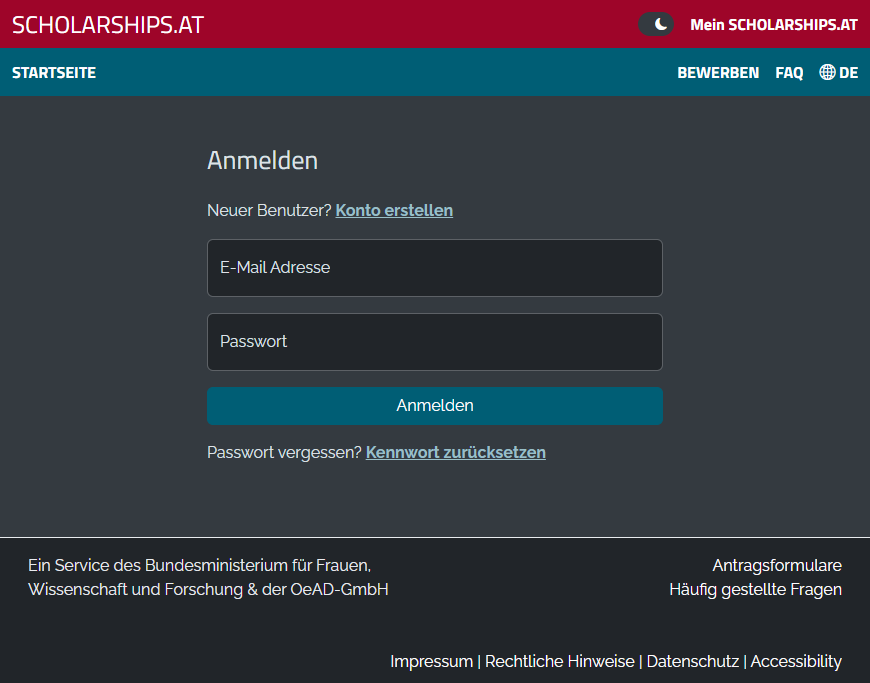
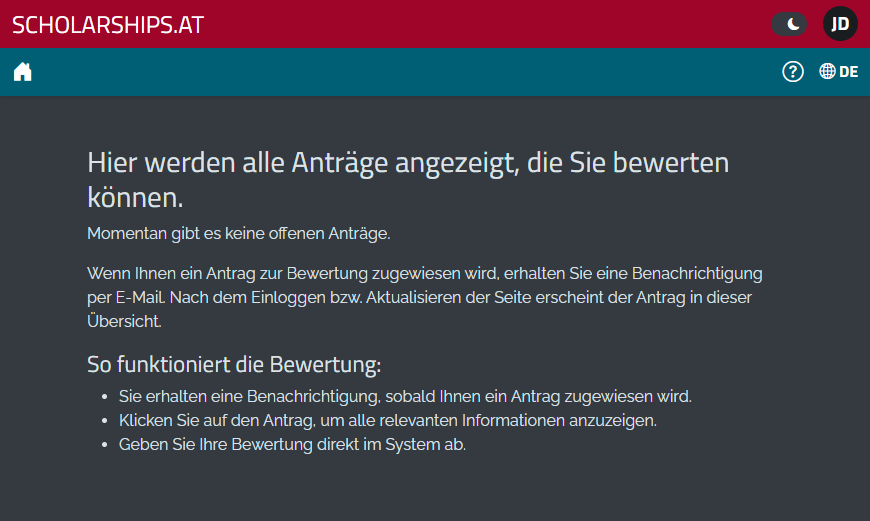
After logging in, you will automatically see the list of applications assigned to you for review.
If no applications have yet been assigned to you, the following message will appear instead. In this case, the application has not yet been forwarded for review. Please check the page again later.
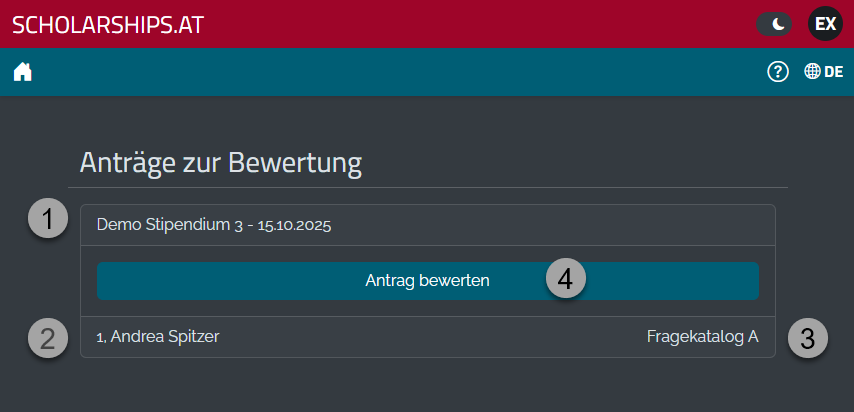
As soon as an application is available for review, it will appear in the list . The overview shows the following information:
1: Name of the scholarship and submission deadline
2: Name of the applicant
3: The questionnaire assigned to you for the review
4: Button Review application, which starts the actual evaluation
To start the review, click the Review application button.
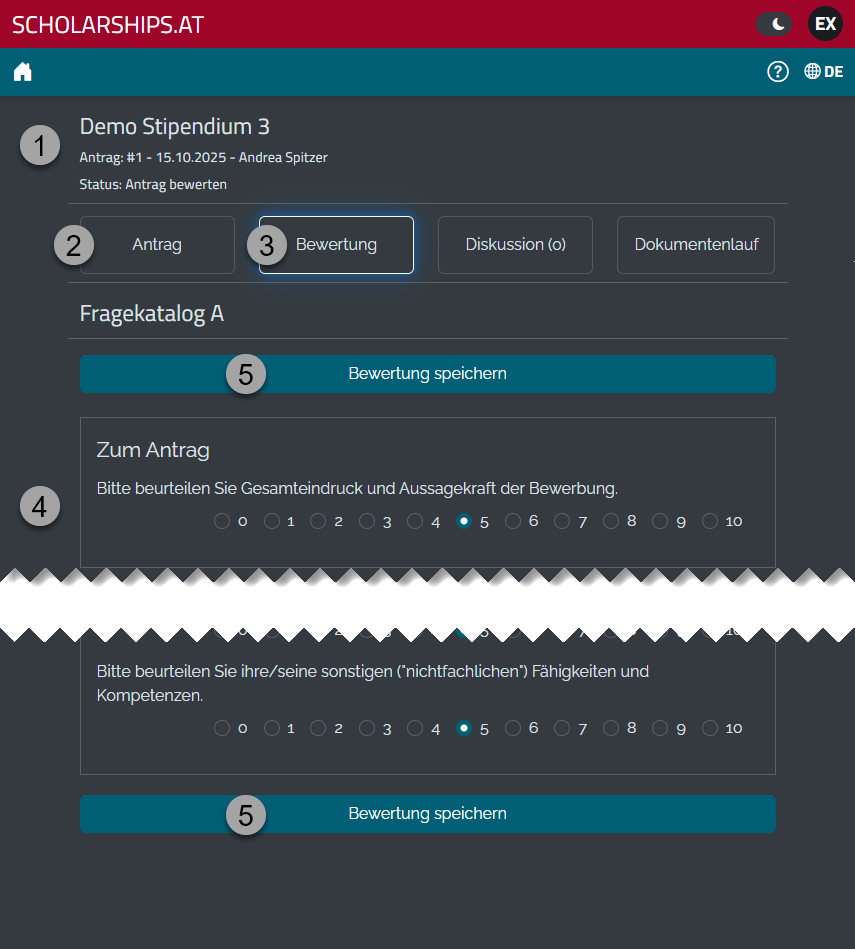
In the detail view of an application, the following areas are available to you:
1: Header with scholarship, application number, submission deadline, applicant, and current status
2: Switch to the Application view to see the full application information (see section 6)
3: Switch to the Review tab (automatically active when you open the application for review)
4: The review questions from the assigned questionnaire
5: Buttons Save review to save your entries
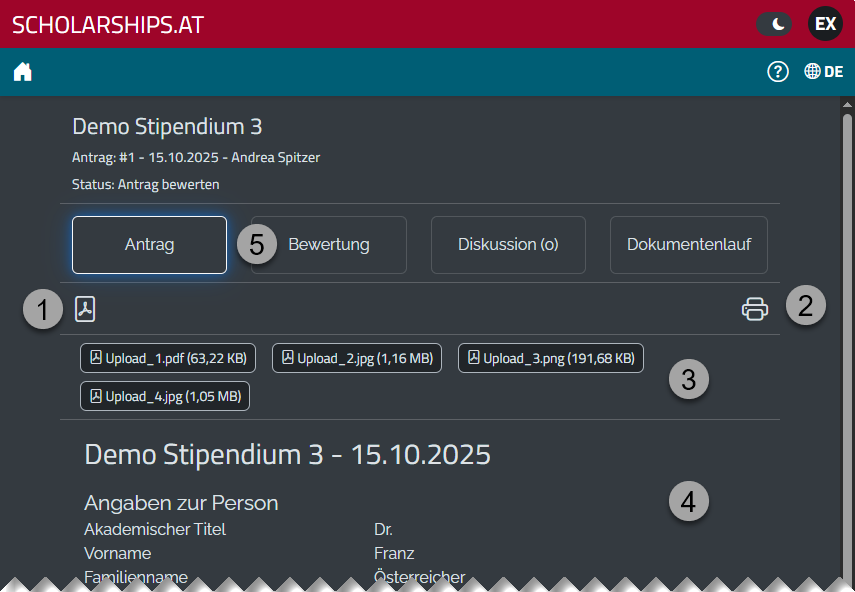
Before starting your review, you can also view the application in detail. The application view provides the following options:
1: Generate a complete PDF of the application including all uploads (if files can be merged)
2: Open the print dialog
3: Display all uploaded files. By clicking on a file, a preview window opens, which you can close again using the symbol

4: HTML view of the application directly in the system
5: By clicking Review you can return to the review view at any time
In the review view, you will see the questions from the questionnaire assigned to you.
Assign points by clicking on the corresponding fields.
Click Save review to save your entries. From this moment, the application is already considered reviewed in the system.